Quick answer: You can run AI on your own laptop — no cloud chat required after the first model download. Start with LM Studio if you want a normal desktop app; use Ollama if you’re fine with a terminal (or want a local API). Pick a model size that fits your RAM, download once while online, then go offline. Local won’t beat frontier ChatGPT/Claude/Gemini on hard tasks — it wins on privacy, offline use, and “no paste into someone else’s server.”
Skip this if you’re happy in cloud chat and never need offline or private drafts. Keep reading if you’ve been pasting sensitive notes into free AI tools and wishing they stayed on your machine.
When local AI is the better job

- Private drafts — journals, HR notes, client wording you don’t want in a consumer cloud (still don’t put secrets you can’t afford to lose on any device)
- Offline travel / bad wifi — chat after the model is downloaded
- No rate-limit anxiety for everyday rewriting once the model is local
- Learning how models work — you’ll feel speed, RAM, and quality tradeoffs in your hands
Cloud still wins for: hardest reasoning, best coding agents, fresh web search, and polished multimodal work. My stack stays hybrid — local for private/offline, cloud for ceiling quality. Tool pick primer: ChatGPT vs Claude vs Gemini.
Hardware reality (before you download a 40GB file)
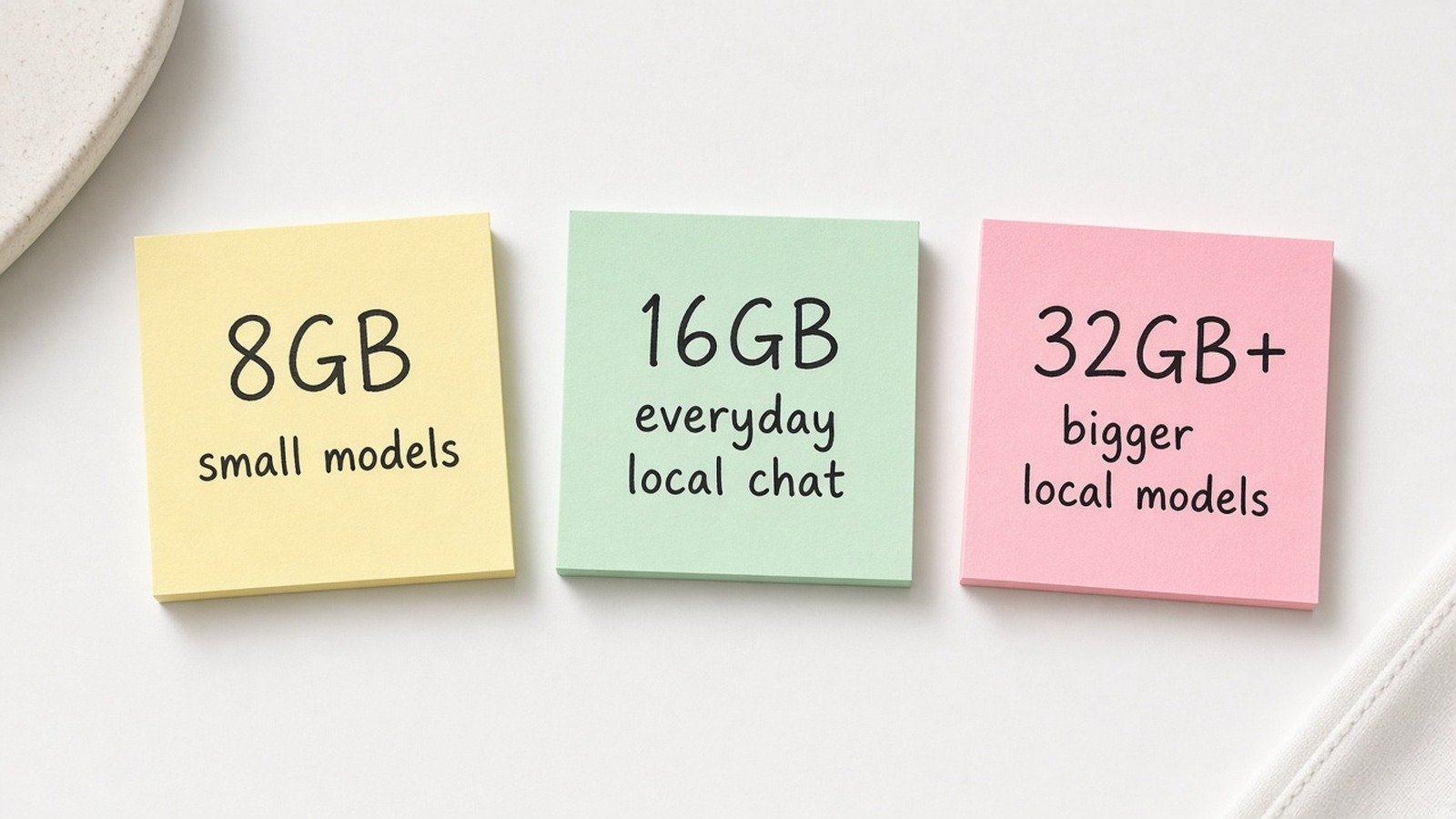
Per LM Studio system requirements (check before you buy anything):
- Mac: Apple Silicon (M1+), macOS 14+; 16GB+ RAM recommended (8GB may work with smaller models). Intel Macs are not currently supported.
- Windows: x64 or ARM; AVX2 on x64; 16GB+ RAM recommended; 4GB+ dedicated VRAM recommended if you have a discrete GPU.
- Linux: AppImage; Ubuntu 20.04+ (newer than 22 “not well tested” per their docs).
Rule of thumb I use: start tiny (1B–3B class), confirm it chats, then step up. Don’t jump to a huge model because a blog called it “best.”
Path A — LM Studio (easiest for most people)
- Download from lmstudio.ai for your OS.
- Open the app → use Discover/search to find a small starter model (while online).
- Download one model that fits your RAM.
- Open Chat, select that model, ask something boring and useful (“rewrite this paragraph shorter”).
- Unplug wifi (or airplane mode) and confirm it still answers — that’s your offline proof.
LM Studio’s own Offline Operation docs are clear: once a model is on disk, chatting, document chat (RAG), and the local server can run without internet. Search, new downloads, runtime downloads, and update checks still need connectivity.
“Nothing you enter into LM Studio when chatting with LLMs leaves your device.”
LM Studio Docs — Offline Operation
Path B — Ollama (terminal + local API)

- Install from ollama.com (macOS / Windows / Linux).
- In a terminal:
ollama run llama3.2(or another small tag from their library — names move; use what’s listed for your install). - Chat in the terminal; exit when done (Ollama’s UI/help covers
/byeand friends). - Optional: hit the local API at
http://localhost:11434from tools that speak “OpenAI-compatible” endpoints.
Privacy claim to verify on their page: Ollama’s Privacy Policy states that when you run locally, they don’t collect/store/transmit your prompts and responses — data stays on your machine. If you use their cloud-hosted models, that’s a different path — choose local deliberately.
# Example only — model tags change. Check ollama.com/library first.
ollama run llama3.2
LM Studio vs Ollama (blunt)
| LM Studio | Ollama | |
|---|---|---|
| Best for | Click-to-chat beginners | CLI + wiring into other apps |
| Offline after download | Yes (per their offline docs) | Yes for local models |
| Watch-outs | Intel Mac unsupported; wants ~16GB RAM | Easy to confuse local vs their cloud offerings |
| My default | First install for non-dev friends | When I want localhost as a service |
You can install both. They don’t cancel each other.
What I’d use local for this week
- Rewrite emails that mention private names/dates
- Summarize meeting notes that shouldn’t leave the laptop
- Outline a draft offline on a plane
- Practice the same prompt skeleton — outcome, audience, constraints, format — local models need clarity even more than cloud ones
For a full recurring system, park cloud work in Projects and keep the spiciest notes local: weekly AI workflow. Broader hygiene: don’t paste private data.
Don’t get cocky about “private”
- Local chat ≠ encrypted forever. Disk backups, shared family logins, and malware still exist.
- If you turn on a local server and bind it beyond localhost, you’ve opened a network door — LM Studio docs warn about exposing beyond
127.0.0.1. - Downloading models still needs bandwidth and disk. Budget tens of GB.
if need_offline_or_keep_notes_on_device:
    install_LM_Studio_or_Ollama()
    download_small_model_first()
    prove_it_works_in_airplane_mode()
elif need_best_reasoning_or_agents:
    use_cloud_ChatGPT_Claude_Gemini()
else:
    hybrid  # private drafts local, hard problems cloud
Will local replace ChatGPT for me?
Usually no — not for the hardest work. It replaces the “I shouldn’t have pasted that” moments.
Do I need a gaming GPU?
Helpful, not mandatory. CPU-only is slower; start with small models. LM Studio recommends dedicated VRAM when you have it.
Sources
- LM Studio — System Requirements (primary)
- LM Studio — Offline Operation (primary)
- LM Studio — Download
- Ollama + Ollama Privacy Policy (primary)
- Ollama FAQ — local prompts (primary)
Published Oct 2, 2026. Model names, RAM needs, and OS support move — re-check vendor docs before you wipe an afternoon on the wrong download.
Read next → Privacy when you still use cloud AI · Weekly workflow · Cloud tool pick · Start Here
Leave a Reply