Category: Productivity

Systems and tools that help you get more done with less fuss

  • A Simple Weekly AI Workflow (Research → Outline → Draft → Edit → Ship)

    A Simple Weekly AI Workflow (Research → Outline → Draft → Edit → Ship)

    Quick answer: Stop opening a blank chat every time you need something. Run one weekly loop — research → outline → draft → edit → ship (one step per workday) — inside a saved Project (ChatGPT or Claude) with standing instructions, and park source-heavy research in Gemini Notebook when you need citations from your own files. Same five steps every week. That’s how AI becomes a habit instead of a lottery.

    Skip this if you only ask one-off trivia questions. Keep reading if you write, brief, report, or plan on a recurring cadence and your chat history is a junk drawer.

    Why a weekly loop beats “just prompt better”
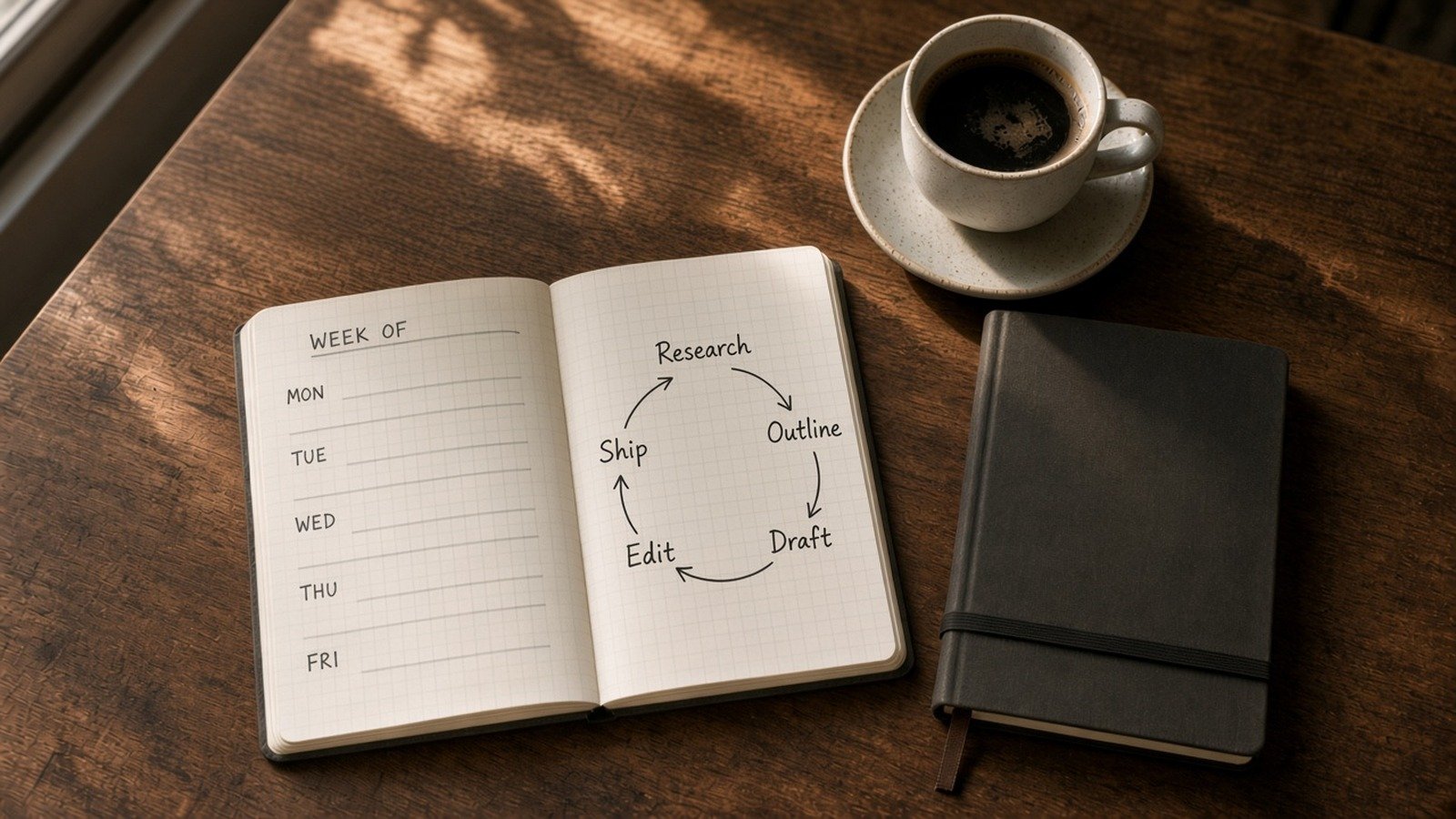
    Weekly planner with a five-part loop: Research, Outline, Draft, Edit, Ship
    Five steps for five workdays — Research → Outline → Draft → Edit → Ship.

    Prompt skill matters (I wrote that guide already). But the traffic that lasts — for you and for this site — comes from systems people reopen. OpenAI literally positions Projects for “repeated and evolving work such as writing, research, planning.” Anthropic’s Projects do the same job: a workspace with its own files, instructions, and chats. Google’s Gemini Notebook (NotebookLM) is the source-grounded research lane.

    My rule: one project per recurring job (weekly brief, newsletter, client update), not one chat per mood.

    Setup once (15–20 minutes)

    1) Create a Project for the recurring job

    ChatGPT — OpenAI Help: New project in the sidebar → name it → upload reference files → Project settings → instructions. Projects are available on free and paid plans; file caps depend on plan (OpenAI currently lists Free: 5 files/project; Go/Plus: 25; Edu/Pro/Business/Enterprise: 40). Project instructions override your global Custom Instructions inside that project.

    Claude — Anthropic Help: Projects at claude.ai/projects → New Project → add knowledge files → set project instructions. Free users can create up to five projects. Paid plans can expand large knowledge bases with RAG automatically when you approach context limits.
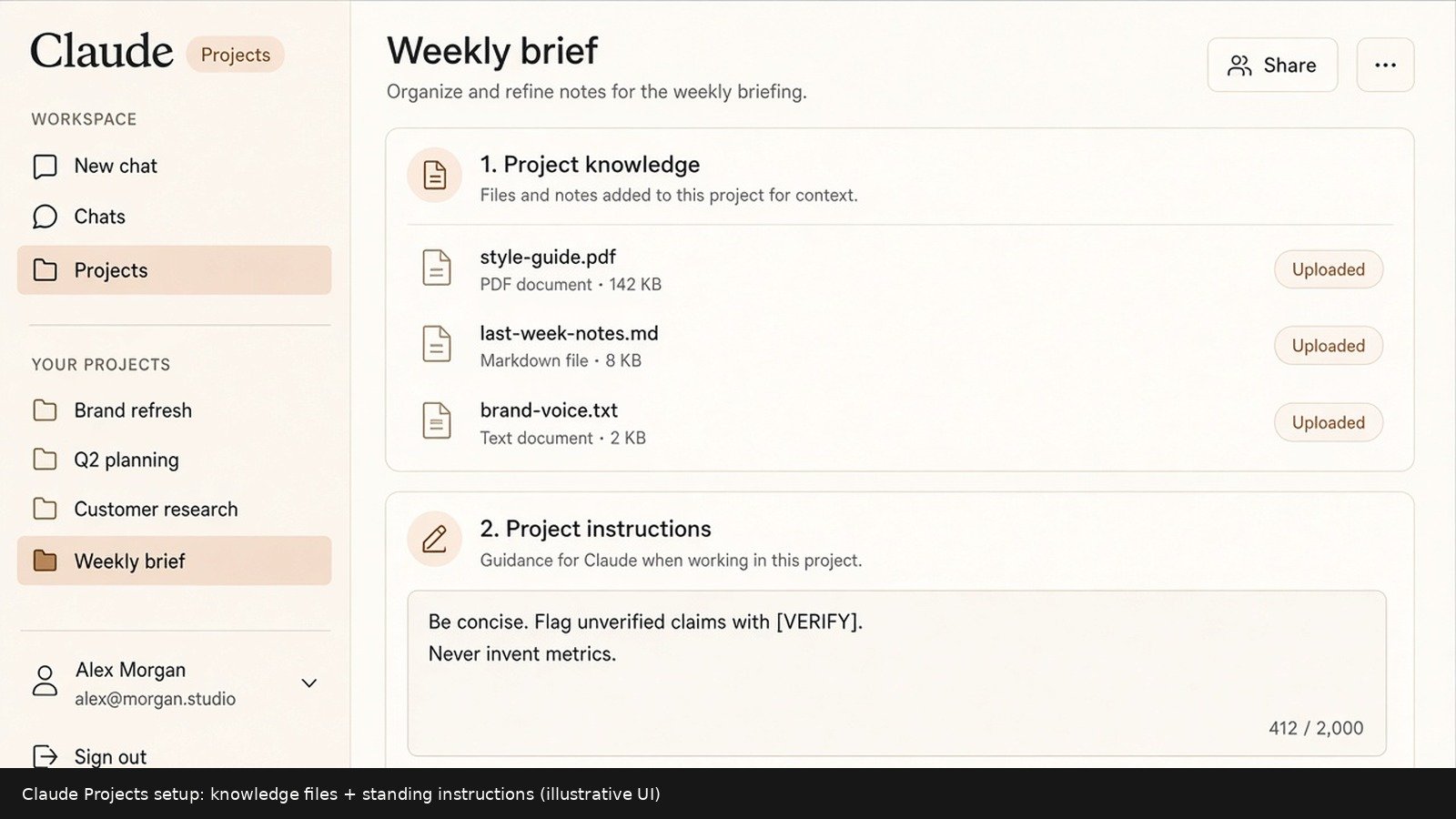
    Claude Projects workspace showing project knowledge files and standing instructions
    What you actually set up in Claude Projects: knowledge files + standing instructions (illustrative UI; steps per Anthropic Help).

    Gemini Notebook — for the research phase when you have PDFs/Docs/links and want answers grounded in those sources. Google Help (standard access): up to 100 notebooks, 50 sources each, 500,000 words or 200MB per source — limits move; re-check Help before you plan a library.

    2) Paste standing instructions (copy this)

    You are my weekly work partner for [JOB: e.g. client status / newsletter / research brief].
    Audience: [who reads the final output].
    Tone: clear, direct, no hype.
    Always:
    - Separate facts from suggestions
    - Flag anything unverified with [VERIFY]
    - Ask me one clarifying question if a decision is missing
    Never:
    - Invent metrics, quotes, or sources
    - Paste or request secrets (passwords, private customer data)
    Output default: tight bullets unless I ask for prose.

    That block lives in the Project — not in your head every Monday.

    3) Decide the tool map (blunt)

    PhaseDefault toolWhy
    Research / source dumpGemini Notebook or Project filesNotebook stays close to uploaded sources; Projects keep files + chats together
    Outline + structureChatGPT or Claude ProjectFast iteration with standing instructions
    First draftSame Project (new chat)Don’t pollute research threads with draft noise
    Edit / cut / voiceClaude Project (my preference)Strong at “keep my voice, don’t add claims”
    Ship checklistYou (human)Links, names, numbers, legal — verify offline

    If you only want one paid app: pick one Project home and stay there. Switching tools mid-week is optional flavor, not a requirement. For “which free app when,” see ChatGPT vs Claude vs Gemini.

    The five-day cadence
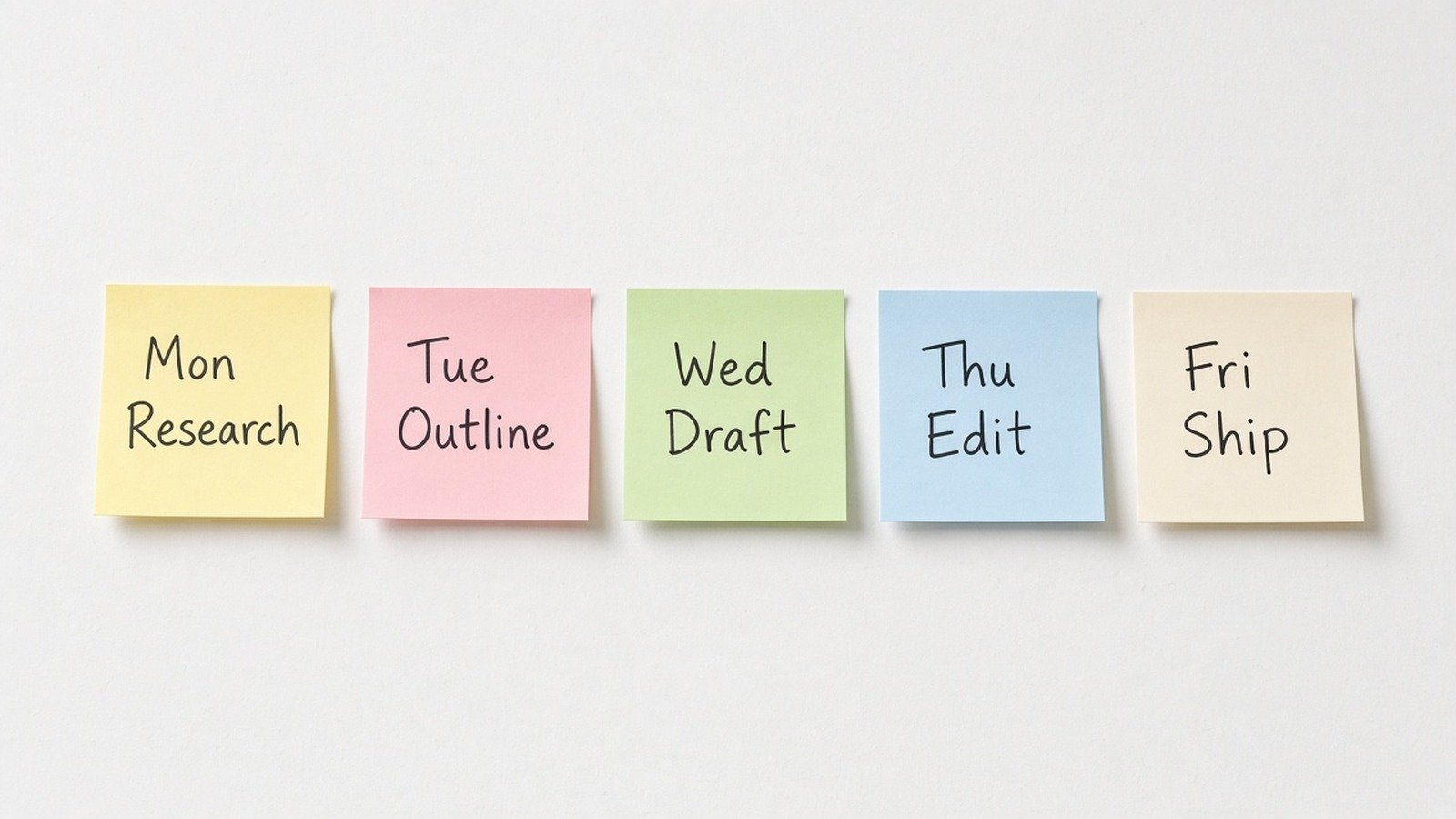
    Sticky notes for Mon Research through Fri Ship
    One sticky per day beats five chaotic chats.

    Monday — Research (gather, don’t write)

    Outcome: A source pack I can outline from without inventing facts.
    Constraints: Only use material I provide or that you clearly mark as [WEB-UNVERIFIED].
    Format:
    1) 8–12 bullets of findings (each with source label)
    2) 5 open questions
    3) What to ignore this week
    Context:
    [paste links, notes, or “use project files / notebook sources”]

    In Gemini Notebook: create/open the notebook, add sources first, then ask questions so answers stay grounded. In a ChatGPT/Claude Project: upload the PDFs once; reuse them every Monday.

    Tuesday — Outline

    Outcome: A 7-point outline I can draft from tomorrow.
    Audience: Me.
    Constraints: Do not add claims that aren’t in Monday’s findings. Mark gaps [VERIFY].
    Format: Numbered outline, one line each, plus a one-sentence thesis.
    Context: [paste Monday findings]

    Use the prompt skeleton from prompting that actually works — outcome, audience, constraints, format, context.

    Wednesday — Draft

    Outcome: A full first draft matching Tuesday’s outline.
    Constraints: No new facts. Short paragraphs. Working title + H2s.
    Format: Markdown draft I can paste into my editor.
    Context: [paste outline + any must-include quotes]

    Start a new chat inside the same Project so the draft doesn’t bury Monday’s research thread.

    Thursday — Edit

    Outcome: A clearer draft that keeps my voice.
    Constraints: Cut repetition. Don’t add claims. Don’t make it sound like a press release.
    Format:
    1) 5 weak spots (quote the phrase)
    2) Revised full draft
    Context: [paste Wednesday draft]

    This is where Claude often earns its keep — but any model works if the constraints are sharp.

    Friday — Ship (human gate)

    • Check every [VERIFY] and every number
    • Strip anything you wouldn’t put on a public page
    • Publish / send / file it
    • Drop a three-line “what worked / what broke” note into the Project for next Monday
    Outcome: A 5-bullet retro for next week’s Project memory.
    Format: Worked / Broke / Keep doing / Stop doing / One experiment.
    Context: [what you shipped]

    Privacy checkpoint (non-negotiable)

    Projects and notebooks are sticky — files sit there for weeks. Don’t upload payroll, customer PII, unpublished strategy, or credentials “just for context.” OpenAI notes that on consumer plans, project data may be used to improve models if “Improve the model for everyone” is on — check your Data Controls. Same hygiene as use AI without pasting private data.

    If you’re on Gemini Skills for reusable slash prompts, park process skills there and keep sensitive facts out — see Gemini Skills replace Gems.

    What I’d do this week

    1. Create one Project named after the recurring deliverable (not “General AI”).
    2. Paste the standing instructions block above.
    3. Run Mon–Fri once on a real piece of work — even a short internal update.
    4. Save the five prompts in the Project or a notes app you’ll actually open.
    5. Next week: don’t reinvent — reopen the Project.
    if job_repeats_weekly:
        put_it_in_a_Project_with_instructions()
        research_then_outline_then_draft_then_edit()
        human_verify_before_ship()
    else:
        use_a_normal_chat  # Projects are for loops, not trivia
    

    Do I need ChatGPT, Claude, and Gemini Notebook?

    No. One Project home is enough. Add Notebook when your research is source-heavy and you want grounded Q&A. Add a second model only when edit quality plateaus.

    Isn’t this just “use Projects”?

    Projects are the container. The weekly loop is the habit. Containers without cadence still rot into junk drawers.

    What about SI / Super Intelligence branding?

    Same tools, new label fight. The workflow doesn’t care what Washington calls the category — see what SI means if the rename still confuses search results.

    How do I keep coming back without willpower?

    Calendar block the five days (even 25 minutes). Reopen the same Project URL. Optional later: ChatGPT scheduled tasks / Claude schedules if your plan supports them — only after the manual loop works.

    Sources

    Published Oct 2, 2026. File caps and plan names move — re-check vendor Help before you promise a team rollout.
  • Gemini Skills Are Replacing Gems — What to Do Before November

    Gemini Skills Are Replacing Gems — What to Do Before November

    Quick answer (Oct 2, 2026): Google is replacing Gemini Gems with Skills — reusable instructions you invoke with a forward slash (/) in chat. Personal accounts lose Gems starting November 2026; Workspace business/enterprise/nonprofit in March 2027; education in June 2027. Google says it will auto-migrate Gems into skills when Gems go away. I’d still recreate my top Gems as skills this week so I control the wording.

    Skip this if you never used Gems and don’t care about saving prompts. Keep reading if you have custom Gems you rely on — or you want slash-command workflows without retyping the same briefing every time.

    What Google announced

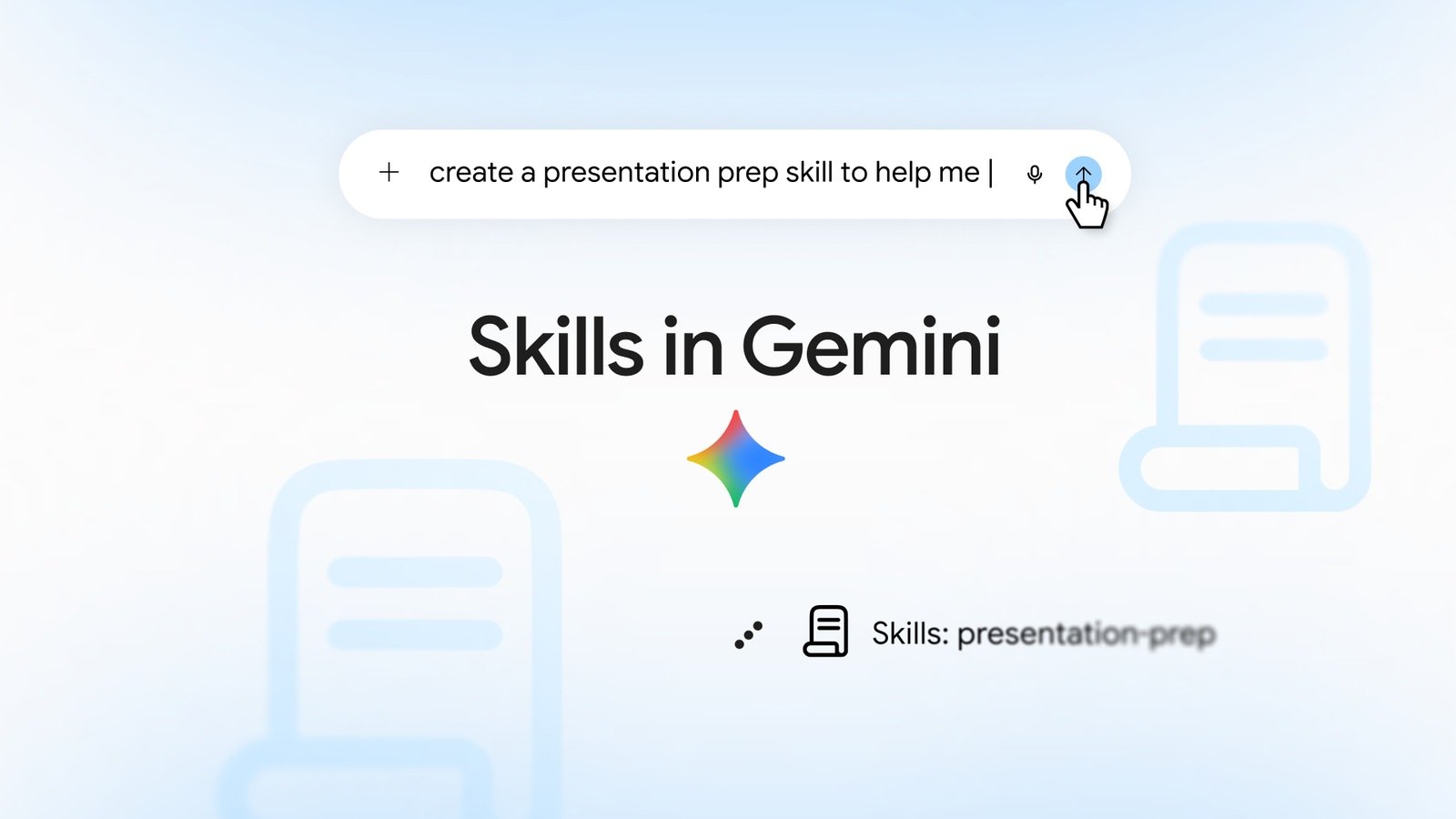
    Official Google key art: Skills in Gemini
    Official product visual from Google’s Sep 30, 2026 Skills announcement (blog.google).

    On Sep 30, 2026, Google published Let skills in Gemini tackle your most repetitive tasks. The pitch: save instructions once, reuse them forever, type / plus the skill name in the prompt bar.

    “With skills, you can save your most-used instructions once and run them endlessly — so you can skip the repetitive prompting and jump straight to the results.”

    Google Gemini blog, Sep 30, 2026

    Skills started in Gemini Spark and are rolling into Gemini chat. Workspace access follows in the coming weeks. Feature parity with Gems (sharing, Drive files, Notebooks) is still catching up — Google’s wording: “in the coming weeks.”

    Gems vs Skills (dates that matter)

    QuestionGems (outgoing)Skills (incoming)
    What is it?Saved custom Gemini “modes”Reusable instruction packs + optional files
    How do I run it?Open the Gem manager / Gem chatType / in the prompt bar (or let Gemini auto-apply)
    Stack several?Basically one Gem at a timeYes — Google says you can combine skills
    When does support end?Nov 2026 personal; Mar 2027 Workspace biz; Jun 2027 eduIt’s the replacement path
    Migration—Auto-migrate on Gem sunset; manual recreate available now

    Secondary reporting (9to5Google, Sep 30) notes skills are available for free Gemini chat users, not only paid Spark subscribers — useful context; treat Google’s Help Center as the live gate for your account and region.

    What creating a skill looks like

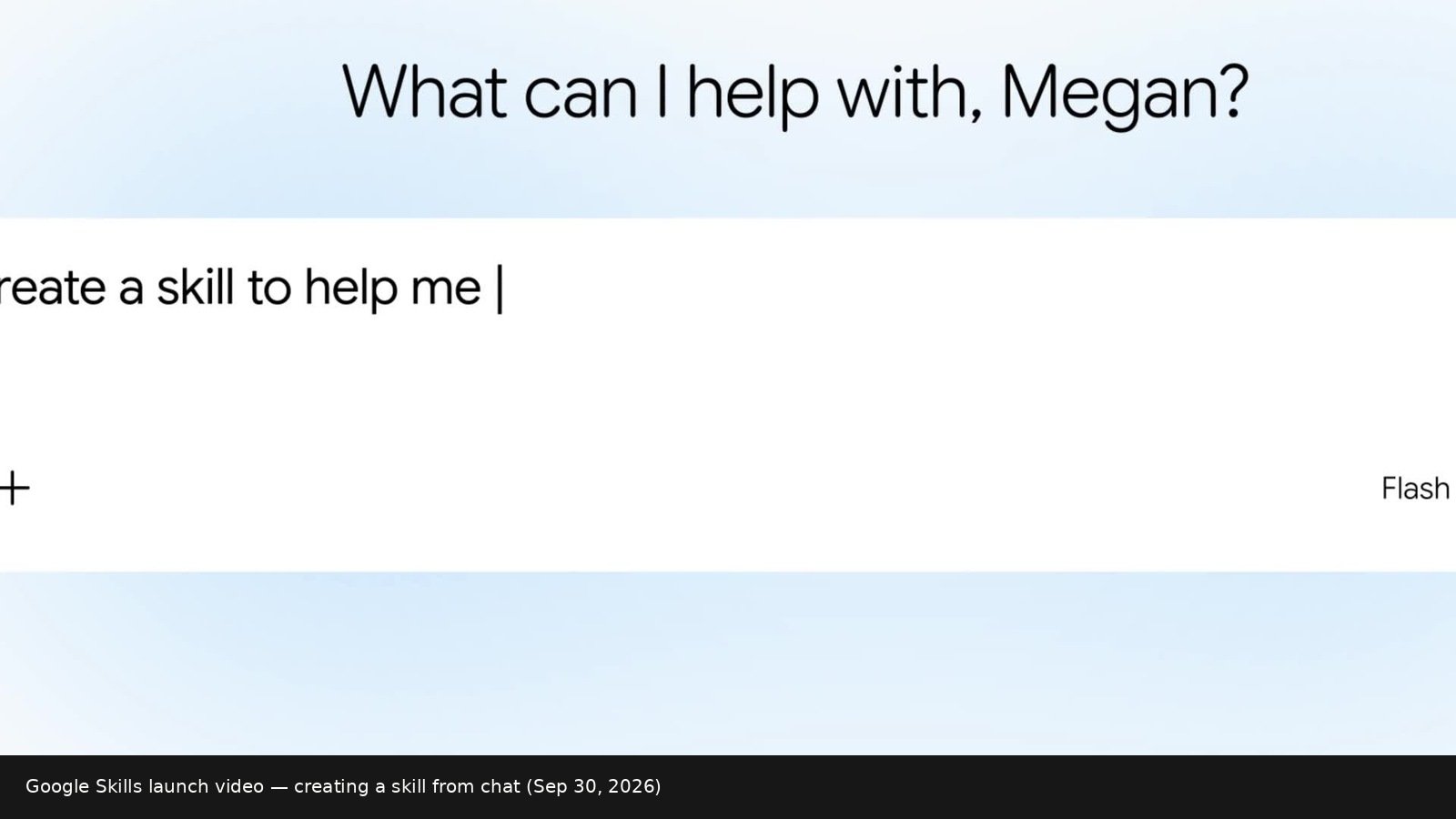
    Gemini prompt: create a skill to help me
    Still from Google’s official Skills launch video — create a skill from the normal chat bar.
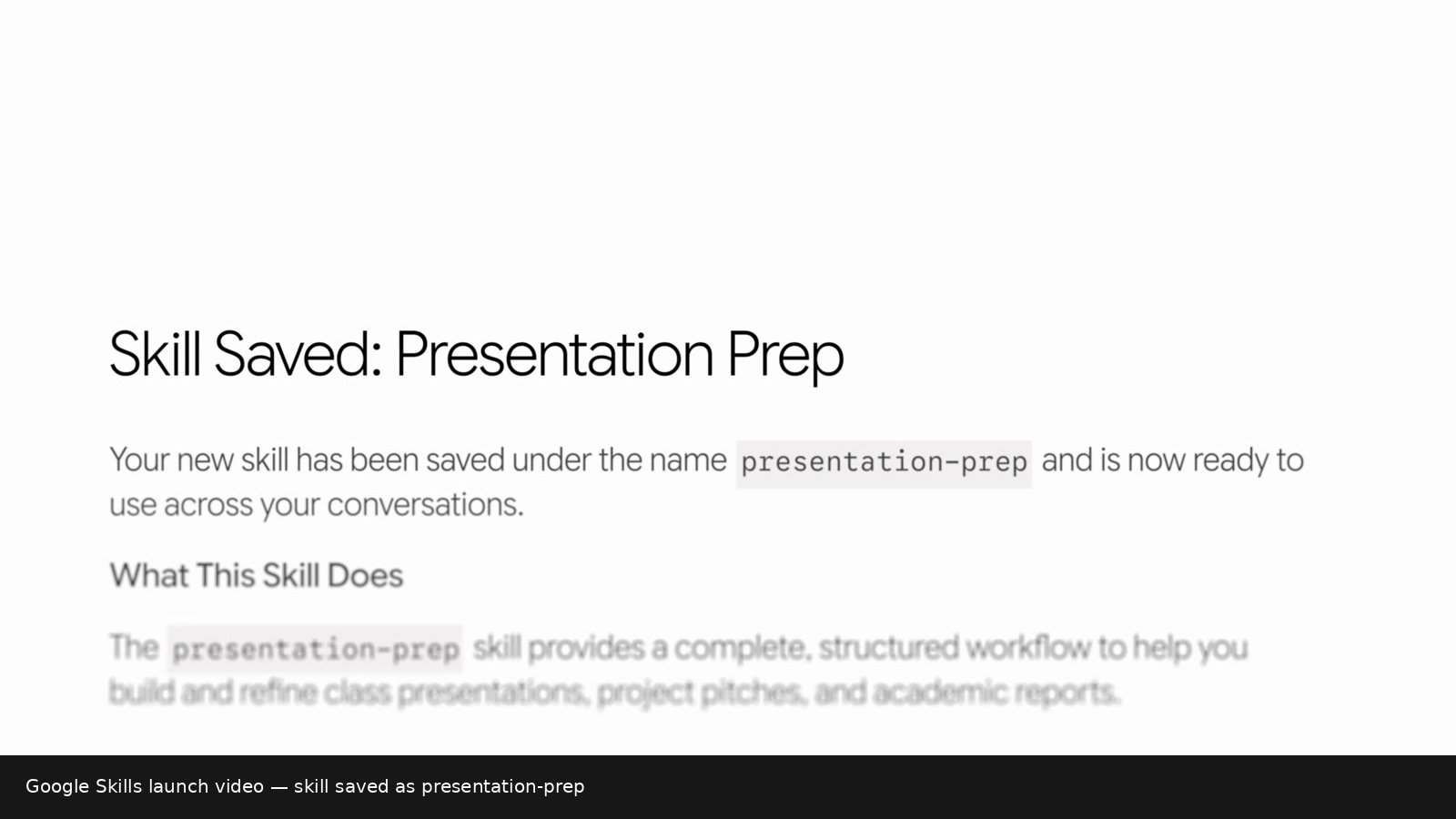
    Skill Saved: Presentation Prep confirmation in Gemini
    Same launch video — Gemini confirms the skill (presentation-prep) and explains what it does.

    Per Create & manage skills for Gemini Apps:

    • Be 18+ (under-18 coming later, per Google)
    • Use gemini.google.com / Gemini apps where Skills has rolled out
    • Personal accounts got chat skills first; work/school follows the Workspace timeline
    • Keep Activity on
    • Help Center tip: skills can be used in chats without a paid Google AI subscription — Spark tasks/schedules are a different layer

    If you don’t see Settings → Skills yet, you’re early or gated — not broken. Re-check in a few days.

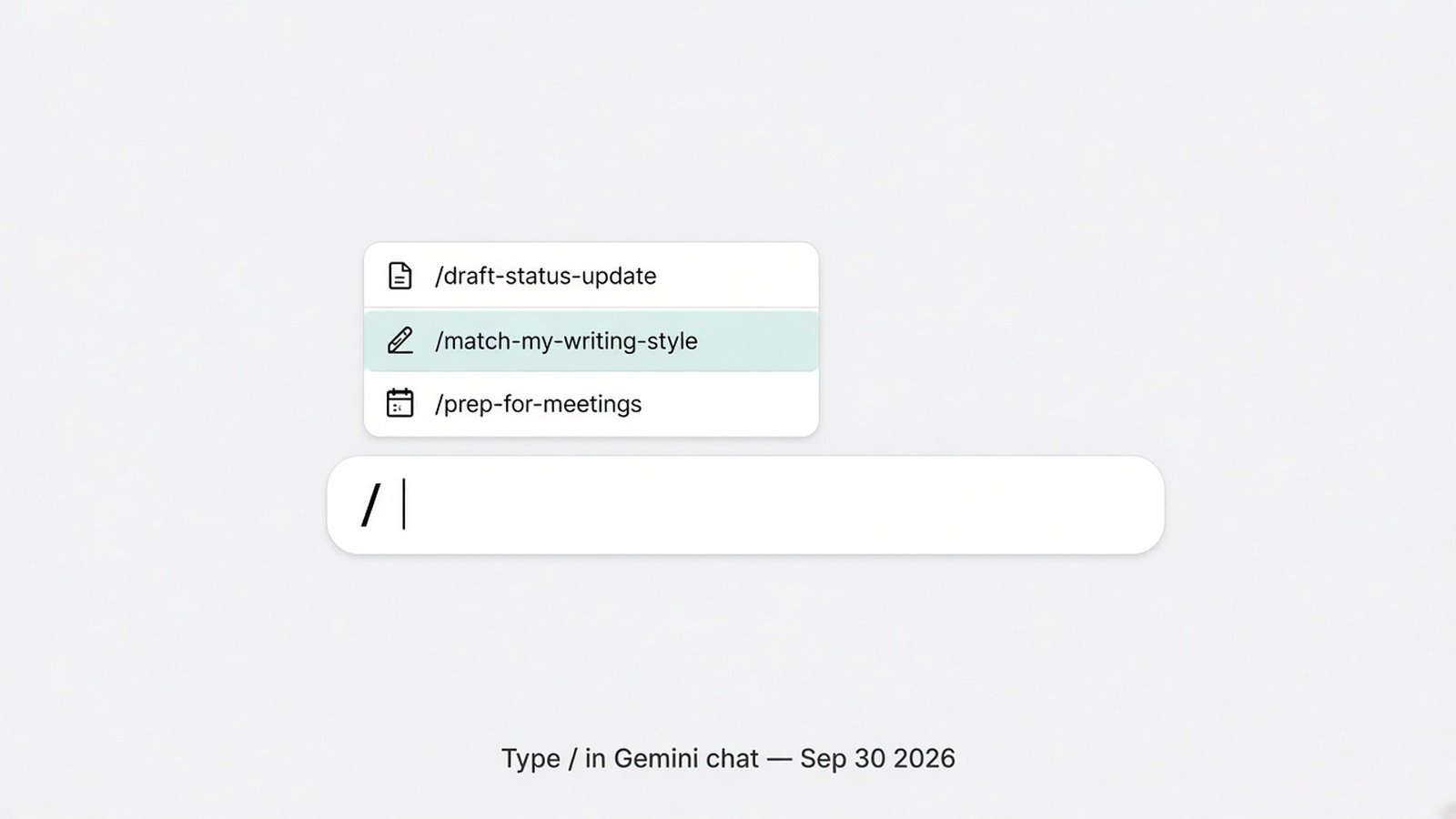
    The move that matters: type /

    Typing slash opens a Gemini skill picker
    What you’re aiming for: type / and pick a skill (illustrative UI based on Google’s slash-invoke docs).
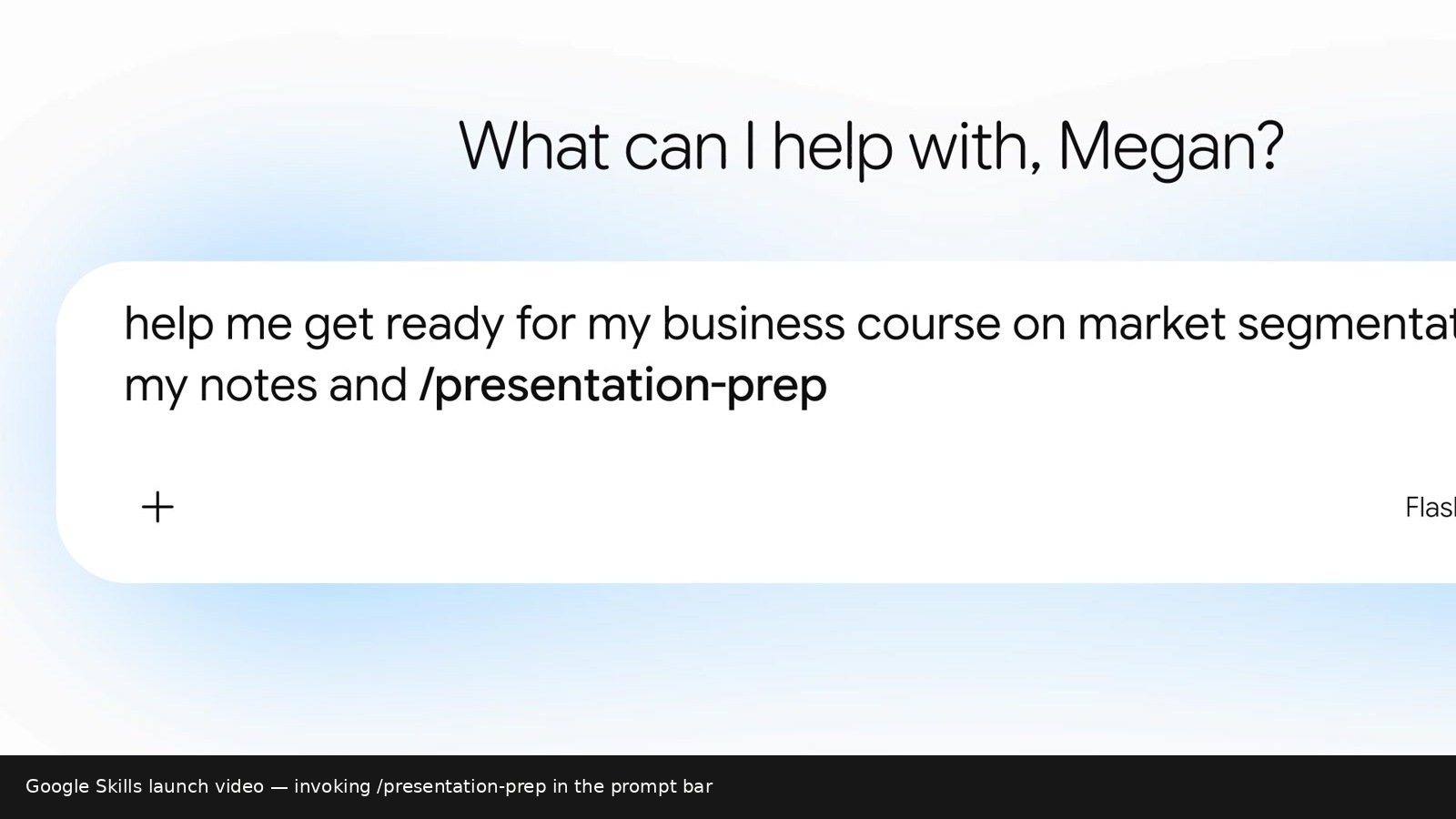
    Prompt using /presentation-prep skill in Gemini
    Official launch video — a real prompt using /presentation-prep inline.
    1. Go to gemini.google.com
    2. Sidebar → Settings → Skills
    3. Create with Gemini, create manually, or upload a SKILL.md folder
    4. In a new chat, type / and select the skill
    5. Stack two skills for bigger jobs (Google’s example pattern: writing-style + meeting-prep)

    How to write a skill that actually gets used

    Google’s Write effective skills guide is clear. The part most people miss:

    • Name = lowercase-with-hyphens, start with a verb (draft-meeting-notes, not helper)
    • Description = third person + Use when… situations. Gemini decides relevance from name + description before reading full instructions
    • Instructions = teach a type of task, not one Tuesday one-off. Add output templates + a “common mistakes” list
    • Skip a skill for one-offs, tasks Gemini already nails, or workflows that change weekly

    Copy-paste starter (adapt it):

    Name: draft-status-update
    Description: Turns raw notes into a short status update with blockers and next steps. Use when I paste meeting notes, sprint scraps, or “what did we ship” bullets.
    Instructions:
    1) Ask me who the audience is if unclear (manager / peers / exec).
    2) Output exactly three sections: Done / Blockers / Next (this week).
    3) Keep total under 180 words. No fluff openers.
    4) Common mistakes: do not invent metrics; if a number is missing, ask.
    5) Tone: plain, direct, first person plural ("we").

    Migrating a Gem: open it, copy instructions into a new skill, tighten the description with Use when…, test with /. Don’t wait for auto-migrate if that Gem pays your rent.

    Privacy note

    Skills can include reference files (txt/md/pdf/images; Help says not binary Office formats like .docx/.xlsx). Treat a skill like a saved prompt with memory — don’t paste secrets you’ll regret. Same playbook: use AI tools without pasting private data.

    What I’d do this week

    1. Inventory — your 3 most-used Gems (or repeated prompts).
    2. Recreate them as skills with verb names + Use when… descriptions.
    3. Practice / — run them once on a real task before November.
    4. Don’t hoard — delete skills that don’t earn a slot.
    5. Choosing tools, not workflows? ChatGPT vs Claude vs Gemini · prompting that works.
    if you_have_custom_Gems:
        recreate_top_3_as_skills_this_week()
    elif you_retype_the_same_brief_often:
        create_one_skill_with_Use_when_description()
    else:
        skip_for_now  # one-off chats don't need skills
    # Re-check Google Help if Settings → Skills is missing

    Do I lose my Gems overnight in November?

    Google says personal Gems lose support starting November 2026 and that Gems will be recreated as skills automatically when Gems go away. I’d still migrate the important ones manually so the description/name quality is yours.

    Are skills free?

    Help Center tip: skills can be used in chats without a Google AI subscription. Spark tasks/schedules are a different layer.

    Is this the same as ChatGPT custom GPTs / Claude Projects?

    Same job-to-be-done (saved instructions), different product. Skills’ distinctive move is slash-invoke + stacking inside the main Gemini chat thread.

    Does the SI rename change any of this?

    No. Super Intelligence (SI) is the branding/policy wave; Skills is a Gemini product change. Naming primer: what Super Intelligence (SI) means.

    Sources

    Published Oct 2, 2026. Sunset dates and availability windows move — re-check Google’s blog and Help Center before you plan a team migration.